

Servers
Your reusable MCP catalog entries.
Connected Apps
OAuth into 250+ SaaS apps via Composio.
Connections
Active and in-flight OAuth connections.
Servers
This tab is your catalog of reusable MCP servers. Each entry can be attached to any agent, so you register a server once and reuse it everywhere.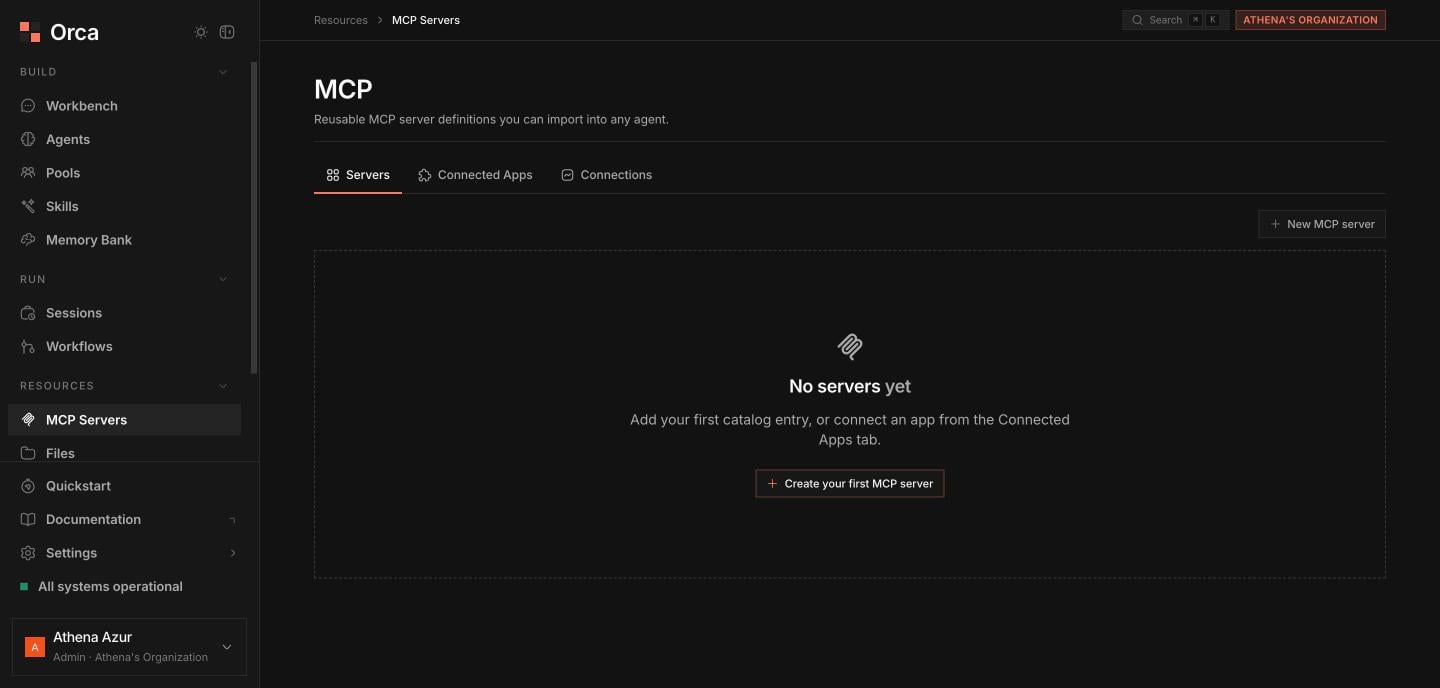
MCP — reusable server definitions, plus Connected Apps and live Connections tabs.
Add or edit a server
1
Open the dialog
Click New server (or Edit on a row) to open the server dialog.
2
Fill in the details
3
Reference secrets in headers
Header values can reference the secret vault with
secret://<name> (for example an Authorization header set to secret://my-mcp-token). The plaintext is resolved at request time and never stored in the header itself. See Secrets.4
Test the connection
Click Test connection to reach the server. On success it shows the round-trip latency and the server’s tool list, so you can confirm the URL, transport, and headers before saving.
Rows that are owned by a Connected App are managed for you and shown read-only — edit or remove them from the Connected Apps or Connections tab instead.
Connected Apps
This tab connects agents to SaaS apps through Composio, which brokers OAuth to 250+ providers (Gmail, Slack, Notion, GitHub, and more). See Connected apps. The tab is an app-card gallery with a search box and a category filter.1
Find an app
Search or filter by category, then pick the app card.
2
Connect
Click Connect. An OAuth popup opens for you to authorize. Orca polls the connection until it reaches ACTIVE.
3
Auto-registration
On success Orca auto-registers an MCP server for the app — it appears (read-only) under Servers and is ready to attach to agents.
If the Composio integration isn’t configured for your deployment, this tab shows a setup hint instead of the gallery.
Connections
This tab is a table of every active and in-flight OAuth connection, so you can audit what’s linked and clean up stale entries.
Click Disconnect on a row to revoke the OAuth grant and tear down its connection.
Related
MCP integration
How agents discover and call MCP tools.
Connected apps
OAuth-based SaaS integrations via Composio.
Secrets
Store tokens referenced as
secret://.Agents
Attach MCP servers to an agent.