

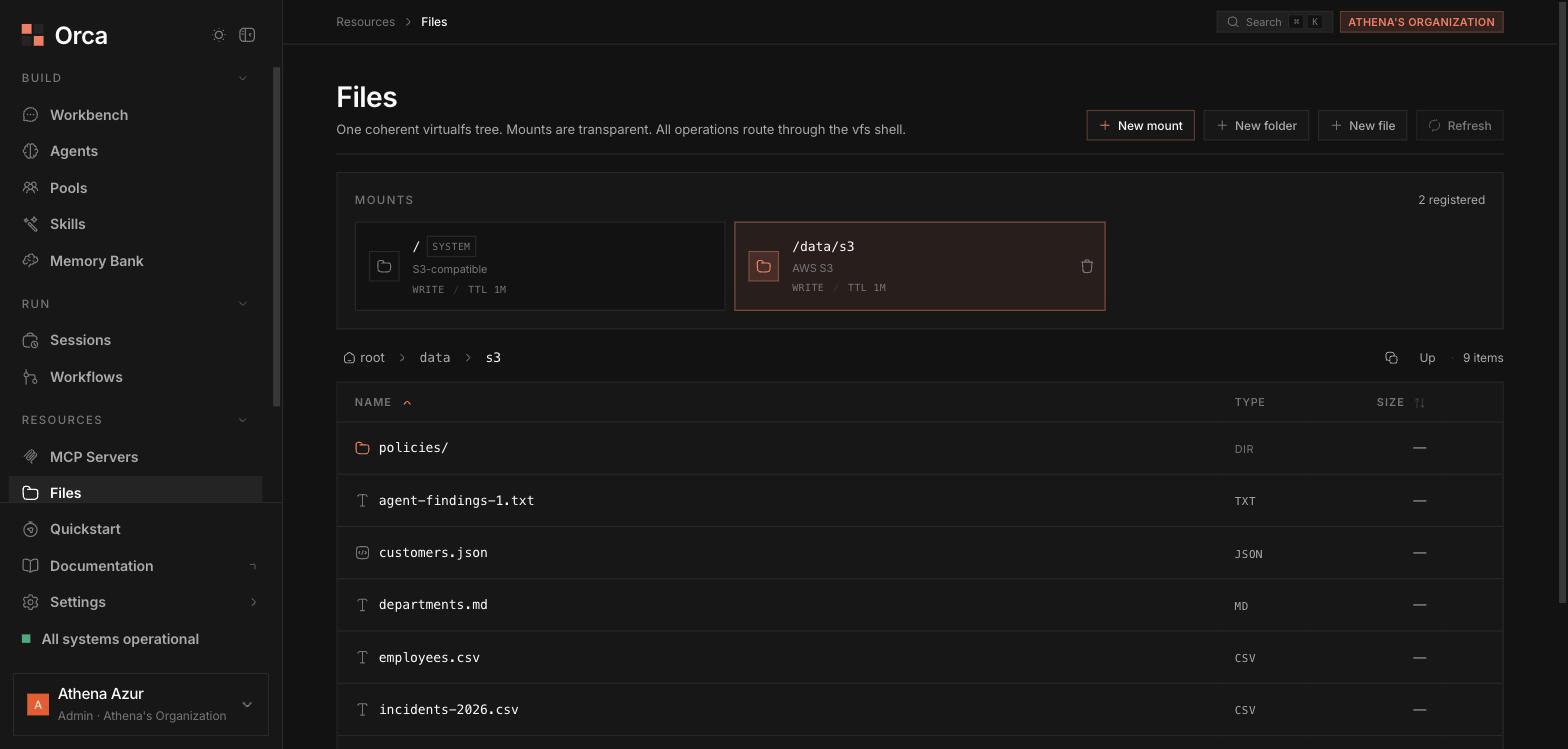
Files — a mounted AWS bucket browsed through the VirtualFS tree.
Browsing
Navigate with the breadcrumb trail at the top and the sortable table of the current folder. Mounts appear inline in the tree — you move through them the same way you move through native folders. A Mounts glance card summarizes each mount at a glance: driver, mode, TTL, and status.Actions
The toolbar exposes the common operations:
You can also delete files and folders, and delete mounts.
There is deliberately no in-app file upload: put objects into your own
bucket with your normal S3/R2 tooling (console, CLI, SDK) and mount it —
they appear in this tree automatically, and agents can read them through
the same mount.
Adding a mount
New mount opens an R2 / S3-compatible wizard to attach an external bucket into the tree.1
Name and path
Give the mount a name and the path prefix where it should appear in the VFS.
2
Mode and lifetime
Choose the mode and an optional TTL.
3
Bucket connection
Provide the bucket, endpoint, and key prefix.
4
Credentials
Pick the access and secret credentials from the secret vault rather than pasting them inline.
Previewing files
Click a file to open the preview slide-in sheet. It renders the contents and offers copy-path and copy-contents buttons.Related
Virtual filesystem
How mounts stitch into one tree.
Storage
Buckets, drivers, and artefacts.
Secrets
Credentials for external mounts.